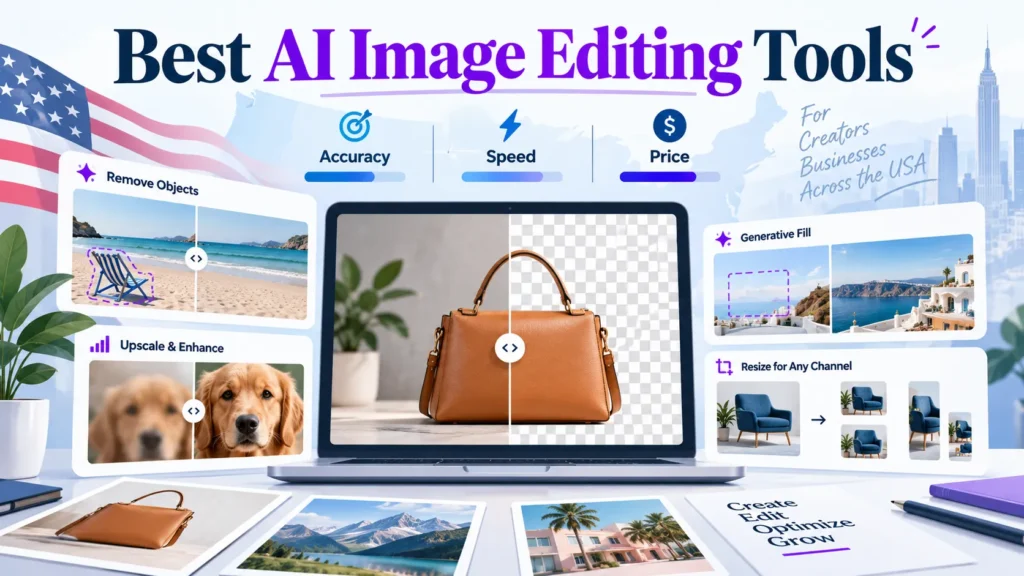
Searching for the best AI photo editing software often surfaces lists ranked by feature count or brand recognition, which can mislead buyers. A tool that removes backgrounds cleanly may still fail at relighting, and a cheap plan can cost more once retries are counted. Many photo editors now rely on ai-powered features, so the marketing claims need checking against real output.
Zapier lists 23 AI image editors. This guide scores each tool on three axes: accuracy, speed and price per usable image. Professional users should weigh the cost of retries as heavily as the sticker price.
No single AI image editor wins on accuracy, speed and price. Match the tool to the edit, output size and budget.
Score tools on cost per usable image, not the headline plan price. Retries raise the real cost.
Check free-tier resolution caps first. Most top out below the 3000+ pixels print work needs.
Some AI features carry separate fees, such as Firefly on top of a Photoshop plan.
Separate editors that change uploaded photos from generators that create new images.
Test the same five images across your shortlist before subscribing.
Table of Contents
Why “Best” Depends on the Edit You Need
Core AI Image Editing Functions and Use Cases
Tool Categories: Full Suites Versus Single-Purpose Editors
How We Tested: Methodology and Scoring Framework
Head-to-Head Comparison of Leading AI Image Editors
Real-World Use Cases for Ecommerce Sellers and Marketing Teams
Conclusion and Summary
Why “Best” Depends on the Edit You Need
A tool can be strong on one edit and weak on another. Background removal may be clean while batch speed is slow. The right choice depends on the type of [photo editing](#) task and the volume you will ship in your [workflow](#).
Many ranking pages order tools by feature count, which says little about whether a tool will fix a product photo without a halo. This article scores each tool on three criteria and maps each score to a specific job, so you can choose by task rather than by brand. Scores are judged on [results](#) from real test images, not on feature lists.
What Accuracy, Speed and Price Mean in Practice
Accuracy means the edit matches your request without unwanted changes or artifacts such as halos, smeared texture or broken patterns. Test it on an image where you know the correct result, such as a product on a plain backdrop, and count how many outputs need manual repair.
Speed is the time from upload to a usable export, including retries. A tool that finishes in ten seconds but needs three attempts is slower than one that takes thirty seconds and succeeds first time.
Price is the cost per usable image at your real monthly volume, not the headline plan price. Generative fill, which adds new content to a scene from a prompt, is a good example. If a $15 plan gives 100 credits and each good edit takes two attempts, you get roughly 50 finished images. Divide the monthly cost by that number.
Who This Comparison Is For: Ecommerce Sellers, Marketers and Photographers
This comparison is written for three groups of US working professionals:
Ecommerce sellers clean product photos, where background removal and shadow consistency matter most.
Marketers adapt campaign assets across channels and [social media](#), where template speed and brand consistency matter most, and a [photo editor](#) that fits their [design](#) process saves time.
Photographers retouch client work, where edge quality and fine control matter most, and [AI-powered](#) tools are judged on whether they preserve detail.
Many readers already pay for Adobe, Canva or Microsoft tools, and each section notes how a tool fits that stack. Check license terms before any commercial use, as they vary by vendor.
Core AI Image Editing Functions and Use Cases
Most AI editors split their work into a few distinct functions. Each has its own failure mode. Know which function you need before you compare tools, especially if you are a working professional choosing one tool for your team.
Generative Editing and Object Removal
Generative editing uses a model to add, extend or replace pixels from a text prompt or a selected area. Object removal deletes an unwanted element and fills the gap with plausible background. Judge removal fills by whether they match the surrounding texture. Judge generative fills by whether the new content belongs in the scene at all.
Adobe’s Generative Remove, introduced in the May 2024 update to Lightroom, is one example. Shotkit’s photo editing guide covers the wider tool. When you test, check the seams first. A clean-looking fill that breaks a repeating pattern, such as brick or fabric, has failed.
Background Removal and Product Photo Cleanup
Background removal separates a subject from its backdrop and returns a transparent or replacement-ready cutout. Edge quality around hair, fur, glass and fine product detail is the key test.
Product cleanup goes further, removing dust, reflections or stray props. Single-purpose tools such as Remove.bg are often faster for this than a full suite. The Avocaido free-tools roundup lists Remove.bg with 4000×4000 high-resolution output.
Enhancement, Upscaling and Colorization
Enhancement corrects exposure, sharpness and noise. Upscaling increases pixel dimensions by inferring detail the original never captured. Colorization adds plausible color to black-and-white images.
Upscaling is the function most likely to invent detail. Compare the output against the source at 100% zoom before you trust it for print. Most free tiers cap output at 1024×1024 or 2048×2048. Print production typically needs 3000+ pixels at 300 DPI, according to Avocaido, which is about 10 inches per side. Check export size before you build a workflow around any tool.
Retouching and Portrait Editing
Portrait retouching covers skin smoothing, blemish removal, eye and teeth adjustment and relighting. The main risk is over-processing, where skin looks plastic or features drift from the real subject. Shotkit reports that Aftershoot launched the early release of AI Retouching, aimed at photographers who process large shoots.
If a client would not recognize the person, the edit has gone too far. Keep the original beside the result when you review it.
Automation Workflows for Batch Editing
Batch automation applies one sequence of AI operations, such as background removal, resizing, color correction and export, to many files. Per-image speed and cost matter most. A tool slightly slower per image can be far slower across 500 files once retries are counted.
Run a 20-image test first. Time the full run and count how many files needed manual correction. Divide the price by usable outputs, not by files submitted. That figure should drive your choice more than the headline plan price.
Tool Categories: Full Suites Versus Single-Purpose Editors
Most AI image editors fall into three groups. The group you choose shapes what you can do, what you pay and how much rework you will face. Zapier’s roundup of AI image editors lists 23 tools currently available, and the best AI photo editing software depends on which group fits your workflow.
Adobe Photoshop and Photoshop-Style Editors
Full suites offer the deepest control. Adobe Photoshop starts at $22.99/month for the standalone plan, and the Photography Plan costs $19.99/month. Some AI features need a separate Firefly plan from $9.99/month. Suites handle precise, layered photo editing well but have a steeper learning curve, which makes them the best fit for professional retouching work.
Canva for Design and Image Features
Canva is a design platform first, with image editing built into layouts for posts, ads and presentations. Canva Pro starts at US$180/year for one person and adds more AI tools and higher usage limits, according to Zapier. It suits teams already making graphics in Canva, but is less suited to pixel-level retouching or detailed masking. Its ease of use makes it simple for non-designers to create polished visuals.
Specialist Editors: Background Removal, Upscaling and Retouching
Single-purpose tools do one job well. Luminar Neo is priced at $119.99 as a one-time lifetime license, which suits photographers avoiding recurring fees. Clipdrop by Jasper offers a free tier and paid plans from €15/mo, per Zapier. For batch work, Shotkit notes that Aftershoot launched the early release of AI Retouching for large shoots.
A specialist tool bought once can beat a monthly suite if you need only one function. Test each category against your job before you commit.
How We Tested: Methodology and Scoring Framework
Most ranking pages name a winner without showing how they reached it. This method can be checked and repeated. The scores come from one reviewer’s test window, not a controlled lab study, so treat them as illustrative and run your own trial before buying.
The best AI image editing tools are the ones that produce a usable image for your job. Run every tool on the same source photos, time each run, and count attempts until you reach an output you would publish. A different reviewer with different photos may reach different verdicts, so the image set matters as much as the scores. Test each photo editing task with the same editing software settings, and include Topaz Photo where it fits your workflow.
Other reviewers have tested in their own windows. Creative Bloq says its guide was last updated 10 June 2024. Amelia Hartley tested AI photo editors in the first half of 2025. Tool versions change quickly, so treat any dated verdict as a snapshot.
Test Images and Edit Tasks
Use one fixed set of source images for every tool: a product shot on white, a product with fine edges such as hair or fur, a portrait under uneven light, a low-resolution image that needs enlarging, and a cluttered scene that needs object removal. Include a social media crop so the export size is tested against a real delivery format.
Run every tool through the same checklist:
Save the untouched source file and note its pixel dimensions.
Start the timer and perform one defined task.
Export at the highest resolution the plan allows, noting any watermark or cap.
Stop the timer at the first export you would publish.
Count retries, including regenerations and manual fixes.
Save the output with the tool name and date in the filename.
Keep tasks identical across tools. “Remove the background” and “remove the background and fix the shadow” are different jobs and should not be compared directly. Apply the same editing steps to each output so the results stay comparable.
Scoring Accuracy, Speed and Price
Score each axis from 1 to 5, then weight the totals for your task.
Accuracy asks whether the edit did what you asked without collateral damage. Edge quality measures how cleanly the subject separates from its background. Artifact rate measures how often outputs show halos, smeared textures or changes to untouched areas. Clear subject contrast in source files reduces both problems. A professional reviewer should judge results against the job brief, not personal taste.
Speed measures time to a usable file, per image and as batch throughput. Retries count toward the total. A tool that takes 20 seconds but needs four attempts is slower in practice than one that takes 40 seconds and succeeds first time. Workflow friction, such as slow uploads or repeated sign-ins, should also be recorded.
Price is cost per 100 usable edits, not the headline monthly fee:
Cost per 100 usable edits = (monthly plan price ÷ usable edits per month) × 100
Usable edits are the exports you would publish after retries are removed. Where an AI feature sits behind a separate plan, add that cost. Adobe Photoshop starts at $22.99/month for the standalone plan, the Photography Plan costs $19.99/month, and some AI features need a Firefly plan from $9.99/month, according to Zapier’s AI image editor roundup. A user who needs both pays $29.98 a month to start.
Weight accuracy highest for client or product work, speed for high-volume batches, and price for occasional use. Set a threshold before testing: if a tool produces more than one artifact in ten outputs, or needs more than two retries on a product cutout, it is not fit for client work, whatever its speed.
Head-to-Head Comparison of Leading AI Image Editors
No tool wins on accuracy, speed and price at once, so the table below scores each one for the job it does best. These ratings are relative judgements, not vendor claims. Read the “best fit” column first, then check price and free-tier limits against your monthly volume.
Comparison Table: Accuracy, Speed and Price
Tool
Best-fit edit type
Accuracy (relative)
Speed (relative)
Starting price (US$)
Free-tier limit
Adobe Photoshop
Detailed retouching, generative fill
High
Medium
From $19.99/month (Photography Plan); some AI features need Firefly from $9.99/month
Photoshop leads on accuracy for detailed work but costs more each month. Canva and Picsart are fast and cheap, but their AI-powered edits are less precise on complex photos.
Free Tiers Versus Paid Plans
Free tiers suit testing, but resolution caps decide whether they can ship work. According to Avocaido, one tool caps free output at 1080×1080, several reach 2048×2048, and some uploads reach 4096×4096. Watermarks and limited AI credits add a second barrier, so a trial that works on one image can fail on a 40-image monthly design or editing workflow.
Avocaido also cites a 2025 Statista report claiming about 67% of creative professionals upgrade to paid plans within six months. This is a single secondary claim, so verify it against the original Statista report before relying on it.
Print Resolution Limits
Most free tiers cap output at 1024×1024 or 2048×2048, according to Avocaido. For print, divide the long-edge pixel count by the print DPI: a 2048-pixel export at 300 DPI gives 6.8 inches (2048 ÷ 300). A 10-inch print at 300 DPI needs about 3000 pixels on the long edge. Check the tool version and test date, because caps change between releases.
For posters or large product prints, check the export size before committing to a free plan, and budget for a paid tier or a dedicated upscaler if the file falls short.
Real-World Use Cases for Ecommerce Sellers and Marketing Teams
Most ranking pages stop at feature lists. In practice, the question is whether a tool can run a repeatable pipeline without rework. The workflows below show where each tool earns its place.
Ecommerce Product Photography Workflows
A product photo usually passes through four steps, and each favours a different tool. Each step is a stage of photo editing, and each favours a different tool.
Remove the background. Use a dedicated remover first, because a clean cutout is the foundation for everything else. Remove.bg reaches 4000×4000 output on its high-resolution option, which covers most marketplace listings.
Generate the shadow. Photoshop-style editing software handles this best because you can adjust opacity and blur by hand.
Replace or tidy the backdrop. For lifestyle shots, generative fill places the product into a scene. Check edges at 100% zoom.
Resize and export. Canva Pro handles batch resizing well, and its price starts at US$180/year for one person.
For a seller shooting 40 products a month, score each step on accuracy, speed and price, then choose the cheapest tool that clears your accuracy bar.
Marketing Team Creative Production
Marketing teams care less about one perfect edit and more about consistent assets across formats. The tool should keep layouts and brand colors consistent, so teams can create assets that match.
Campaign asset resizing: Template-driven tools such as Canva suit this, because brand fonts and colors stay locked.
Generative fill for backgrounds: Extending a backdrop saves reshoots. Avoid it for people or logos, where an invented detail can damage trust.
Approval workflows: Route drafts to a reviewer before export. Canva Pro’s higher usage limits matter once several people generate assets weekly.
Teams already on Adobe licenses can keep Photoshop-style editing for hand-finished hero images and use Canva for high-volume formats. Check license terms before using any output for commercial work.
Conclusion and Summary
No single AI image editor wins on accuracy, speed and price at once. The right choice depends on the edit you need, the output size you require and the budget you can justify. A tool that scores highest on accuracy for detailed retouching may cost more per usable image, while a low-cost generator may be faster but need more rework. Judge each option by the results it produces on your own images, not by headline claims. Test any photo editing tool on your own work before you commit to a subscription.
Before you commit, run three tests on your own images:
Accuracy test: Edit five real photos from your work and count the artifacts or unwanted changes. Set a limit in advance, such as no more than one artifact per export, and drop any tool that exceeds it for client work.
Cost test: Divide the monthly plan price by the number of usable exports, not attempts.
Resolution test: Export at the size your final use needs. In the tiers we checked, free plans capped output at 1024×1024 or 2048×2048 pixels, which falls short of print needs.
Vendor terms change, so check each tool’s current pricing page before you buy. Confirm commercial and team license terms before using outputs for client or commercial work.
Which AI image editor is most accurate for background removal?
Accuracy depends on the subject. Dedicated background removers such as Remove.bg tend to produce cleaner edges on products and people. Full editors like Adobe Photoshop give more control when hair, glass or fine detail needs manual cleanup. Judge accuracy on your hardest photo, not your easiest.
Is there a free AI image editor good enough for print?
Usually not. In the free tiers we checked, output was capped at 1024×1024 or 2048×2048 pixels. Print at 300 DPI needs roughly 3000 pixels along the long edge for a 10-inch print, so check each tool’s export settings. Free tiers suit web images and social media posts.
How much do the best AI image editing tools cost?
Headline prices vary widely. Zapier’s AI image editor roundup lists Adobe Photoshop at $22.99/month for the standalone plan, while the Photography Plan costs $19.99/month. Some AI features require a Firefly plan from $9.99/month. Canva Pro starts at US$180/year for one person. Clipdrop by Jasper offers a free tier and paid plans from €15/mo. Luminar Neo costs $119.99 as a one-time lifetime license. Prices were checked on the dates each source was published, so confirm current figures on each vendor’s pricing page. If a tool needs three retries per edit, its effective cost rises accordingly.
Do I need Photoshop if I use AI image editors?
Not always. A specialist tool handles single jobs, such as background removal or upscaling, at a lower cost. Photoshop earns its price when you need precise, layered editing alongside AI features. Check whether the AI features you need sit inside your existing subscription, and build that check into your workflow before you subscribe.
Are AI image editors safe to use with client photos?
Read the terms of service before uploading. Some tools may use uploaded images to improve their models, and free tiers often carry looser data terms than paid plans. For client work, confirm the data retention policy and check that your license covers commercial use. Where a client contract restricts third-party processing, ask the client before using a cloud tool.
About the author
Tom Koh
Tom is the CEO of MediaOne, a leading digital marketing agency. He is a business-experienced SEO consultant as well as a Google Gold Search Expert serving the international community. He has consulted for MNCs like Canon, Maybank, Capitaland, SingTel, ST Engineering, WWF, Cambridge University, as well as Government organisations like Enterprise Singapore, Ministry of Law, National Galleries, NTUC, e2i, SingHealth. His articles are published and referenced in CNA, Straits Times, MoneyFM, Financial Times, Yahoo! Finance, Hubspot, Zendesk, CIO Advisor. Under his stewardship, MediaOne has won dozens of prestigious digital marketing awards.
Your website has 150 published articles. Some attract consistent organic traffic, others haven’t generated a meaningful visit in months, and several cover nearly identical…
Writing a good advertisement sounds simple until you have to create 15 different headlines, stay within character limits, communicate your product’s benefits, and make…
Verifiability matters more than speed when publishing AI-generated content. An AI content generator turns a short brief into draft copy, and its usefulness depends…