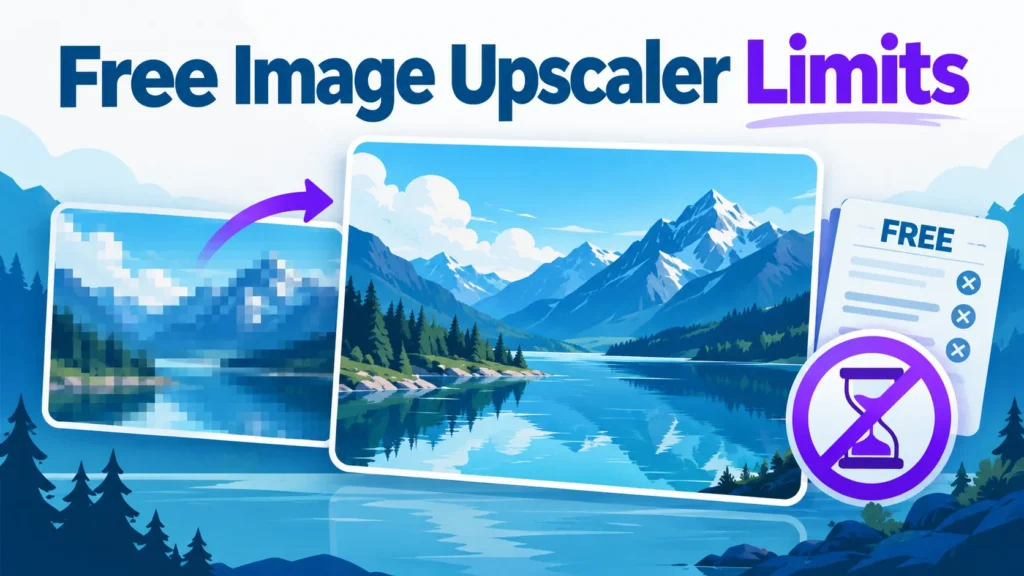
Free image upscaler limits decide whether a free tool can finish your job. Most free tiers cap file size, output resolution, daily quotas and export rules. A 16x advertised factor means little if the output cap blocks your print size. Check the limits of any best free AI image upscaler before you upload a single file.
Free works when your file fits the size cap, your target print fits the pixel cap, your quota covers your batch and exports carry no watermark. Pay when any check fails for a job you must finish.
Check limits first: input size, output pixel caps, daily quotas and watermarks decide whether a free image upscaler can finish your job.
Advertised factors mislead: a 16x claim may never be reached under a 4096×4096 output cap.
Convert print size to pixels: compare required pixels against the free output cap.
Plan around the daily stop: schedule batch work around the quota reset.
Run the Limit Fit Check: one fail means the free tier cannot finish the job.
Table of Contents
Why Free Upscalers Hit a Wall
The Limit Fit Check
Comparing Free Upscalers and Deciding When to Pay
Why File Size Reduction Is Not a Quality Win
Step-by-Step Upscaling Process and Tips for Better Results
Conclusion: Check the Limits First
Frequently Asked Questions
Why Free Upscalers Hit a Wall
A 640×480 phone photo printed at poster size can exceed what a free image upscaler allows, even at a 16x factor. The real constraint is the free image upscaler limits behind that factor, and batch processing can exhaust daily quotas quickly. Enhance photo quality only after the file clears those limits, since photos and images that exceed them will not process at all.
Input file size, output pixel ceilings, daily quotas and watermarks decide whether a free tier can finish your work. One free tool documents a 10 MB input limit and a 4096×4096 output cap, which blocks many camera originals.
Check the limits first, then judge quality, since AI upscaling can invent false edges or waxy skin. Limits change, so verify figures checked on 16 October 2026 on the vendor’s pricing or help page before relying on them.
The Limit Fit Check
The Limit Fit Check is a short scoring sheet. For each candidate photo enhancer, mark pass or fail on five points. A single fail means the free tier cannot finish the job.
Does your file fit the input size cap?
Do the maximum output pixels cover your print size?
Does your daily or monthly quota cover the number of images you need?
Are exports free of watermarks and in a usable format?
Does the output match what you need?
Worked case: a tool that passes quality but fails the output cap
A 640×480 photo can become a printable 2560×1920 image, according to UpscaleIMG. A 16×20-inch poster needs 4800×6000 pixels at 300 DPI, which exceeds a 4096-pixel long-edge cap. The image passes the quality check but fails the Limit Fit Check, so the free tier cannot deliver poster size.
Input size and file-size caps
Free tiers often cap input size. A 10 MB limit excludes many camera originals, so a 12 MB phone photo may be rejected. Check file size before you upload your image, since a rejected file wastes a daily allowance.
Output resolution and the 4096×4096 ceiling
Some free tiers cap output at 4096×4096 pixels. This cap, not the advertised factor, is the real limit on resolution. Multiply print width in inches by 300 for good-quality output. A 4×8-inch print needs 1200×2400 pixels, which fits. A 16×20-inch poster needs 4800×6000, which does not.
Upscale factor and its quality ceiling
Tools advertise factors up to 16x, but a factor is only usable if the enhanced image stays under the pixel cap. Test the factor on a crop first, and upscale images in small batches to check the details. A tool that advertises an enhance photo factor is only useful if the results still hold their detail at the final size.
Daily quotas, watermarks and export rules
A daily quota is a hard stop. UpscaleIMG documents the message “You’ve used all your free images for today,” so plan batches within one day’s allowance. Check watermark and export terms before committing any product photos, including those you plan to share on social media. Exports with watermarks can make a finished image look unprofessional, even when the results are sharp.
Comparing Free Upscalers and Deciding When to Pay
Free image upscaler limits differ from tool to tool, so compare the categories rather than a generic ranking. The audit below records the failure point for each tool named in the sources, checked 16 October 2026. Read each tool’s resolution limit, accepted image formats and quota from its own page before a job begins. Lower-quality source files, such as a low-resolution upload from social media, need extra checks on the output cap. Start by choosing a photo enhancer, then upload your image and compare the results against the published limits.
Confirm each limit on the vendor’s own help page before relying on it, since caps and factors can differ by tier and change over time.
Portraits behave differently from illustrations, as face handling can invent detail. Test any tool on a crop of your own photo first. Blurry sources may need extra care, since upscaling can enhance noise along with detail.
Best free upscaler by use case
For family photos, a free tier is usually enough. A 640×480 photo can become a printable 2560×1920 enhanced image within a typical free output cap (UpscaleIMG). Some users also share a free ai image on social media, where a smaller export is often sufficient.
For product or print work, the limits bite. Print vendors often need files above 4096 pixels on the long edge, which a free output cap blocks.
Hidden costs of free upscaling
Retries consume quota, and some exports are recompressed, softening fine detail. Features such as AI background removal often sit behind a subscription, reported from about $120 per year (FlexClip).
Pricing and when paid tiers pay off
One vendor sells credit packs, such as 200 credits for $4.99 or 950 credits for $19.99, with tokens expiring after 12 months (FlexClip). Check the official pricing page before buying.
Limit Fit Check result
Decision
All checks pass
Free tier is sufficient
Output or quota fails, use is occasional
Paid credit pack is worth it
Batch, commercial or very large output needed
Paid subscription or specialist tool
Why File Size Reduction Is Not a Quality Win
Some tools advertise they reduce file size by up to 80%, but smaller files are not better for print. Images make up roughly 22.8% of mobile page weight, so compression suits websites. Lost detail cannot be recovered, so treat size reduction as a side effect to inspect.
Step-by-Step Upscaling Process and Tips for Better Results
Before uploading, check file size and format against the tool’s limits using the Limit Fit Check. Crop unneeded areas, since extra pixels count toward the output cap and daily quota. Preparing a clean image first makes the upscale more reliable and protects the photo quality of the final result.
Running the upscale and checking the output
Upload your image, cropped and prepared.
Choose the lowest upscale factor that reaches your target print size.
Run the upscale and compare the output to the original at 100% zoom.
At 100%, look for halos along high-contrast edges, waxy skin, and invented texture in fabric, hair or foliage. These signal guessed detail, so reduce the factor or try a more conservative photo enhancer. The same check applies to an old photo restoration, where invented texture is easy to miss.
Quality-protecting tips
Choose the lowest factor that meets the print size. A 2x result that prints well beats a 4x result that looks fake.
Export as PNG where available, since it is lossless.
Remove noise only where it is grain or sensor noise, since noise removal on scans or flat graphics can erase real details.
Test on a small crop first to reveal failure modes using a fraction of your quota.
Conclusion: Check the Limits First
Run the Limit Fit Check in order: input size cap, output pixel ceiling, upscale factor, daily quota, then hidden costs. Most people never reach quality, because a free tier that stops at the input or output stage makes photo quality irrelevant.
For casual work, the free tier is usually enough. Pay when your job fails a limit, such as poster-size prints, daily volumes or batch processing.
Your next step is a test crop. Run a small section of your best images through the free tier at the factor you need, and inspect it at 100%. That reveals the real free image upscaling limits before you commit.
Frequently Asked Questions
Is a free AI image upscaler good enough for printing?
It depends on print size and the output cap. An 8 x 10 inch print at 300 DPI needs 2400 x 3000 pixels. Many free tiers cap output at 4096 x 4096, so check the free image upscaler limits before you start. A 640 x 480 phone photo upscaled 4x reaches only 2560 x 1920, which suits a modest print but not a large one. Check the resolution your print needs before you upload your image.
What happens when I hit a free upscaler’s daily limit?
Most free tiers stop with a hard message such as “You’ve used all your free images for today.” Check the reset rule before starting a batch. If the job is urgent, buy credits or move to a paid plan. Free is enough when your daily volume is small and the output cap fits your use. Pay when a deadline or batch size would hit the limit.
Do free upscalers add watermarks or restrict export formats?
Some do, and the rules differ by tool. FlexClip states that you can upscale up to 4 times and export in PNG. Confirm watermark rules on the tool’s pricing or help page, and note the date you checked, since tiers change.
How much does a paid image upscaler cost?
Prices change, so check the vendor’s page before buying. As of the date this article was checked, FlexClip listed one-time credit packs from $4.99 for 200 credits to $19.99 for 950 credits, with tokens expiring after 12 months. Compare the cost per image against your monthly volume.
Can an upscaler make blurry photos sharp?
It predicts plausible detail, so edges can look crisper, but it cannot recover information the original never captured. It works best on clean, mildly blurred images and struggles with heavy motion blur and severe noise. Old photo restoration needs the same caution. Compare the output with the original at 100% before using it.
About the author
Tom Koh
Tom is the CEO of MediaOne, a leading digital marketing agency. He is a business-experienced SEO consultant as well as a Google Gold Search Expert serving the international community. He has consulted for MNCs like Canon, Maybank, Capitaland, SingTel, ST Engineering, WWF, Cambridge University, as well as Government organisations like Enterprise Singapore, Ministry of Law, National Galleries, NTUC, e2i, SingHealth. His articles are published and referenced in CNA, Straits Times, MoneyFM, Financial Times, Yahoo! Finance, Hubspot, Zendesk, CIO Advisor. Under his stewardship, MediaOne has won dozens of prestigious digital marketing awards.
Your website has 150 published articles. Some attract consistent organic traffic, others haven’t generated a meaningful visit in months, and several cover nearly identical…
Writing a good advertisement sounds simple until you have to create 15 different headlines, stay within character limits, communicate your product’s benefits, and make…
Verifiability matters more than speed when publishing AI-generated content. An AI content generator turns a short brief into draft copy, and its usefulness depends…