A Google Ads script that catches a broken landing page before it wastes another day’s advertising spend is useful. A script that automatically pauses a campaign because conversions dropped yesterday can be considerably more dangerous.
Both are forms of automation, but they solve very different problems.
Google Ads scripts let advertisers use JavaScript to monitor performance, generate reports, update budgets, manage keywords, and make account changes without maintaining their own servers. Google provides several ready-made scripts, and marketers can build additional workflows using account data and external services.
The attraction is obvious. Instead of checking dozens of campaigns manually every morning, you can receive alerts when spending changes unexpectedly, links stop working, or account performance falls outside normal conditions.
However, the most valuable Google Ads scripts are often the ones that tell you something is wrong without immediately trying to fix it.
A campaign with high cost per acquisition might be experiencing delayed conversion reporting. A sudden increase in spending could reflect normal demand rather than wasted budget. An apparently irrelevant search term might still be responsible for qualified conversions.
Automatically changing bids, budgets, or targeting before understanding those conditions can create more problems than the script was intended to solve.
This guide covers seven Google Ads scripts and automation workflows worth adapting, five approaches that can waste budget, and the safeguards to establish before allowing code to modify a live advertising account.
Start with monitoring scripts before enabling automatic changes. Account alerts, broken-link checks, and reporting are easier to validate than automated bidding or campaign-pausing rules.
Google provides official scripts worth adapting, including Account Anomaly Detector, Link Checker, Account Summary Report, and Common Negative List.
Budget pacing requires more than comparing today’s spend with the daily budget. Google can spend up to twice the average daily budget on a given day for most campaigns, subject to its charging limits.
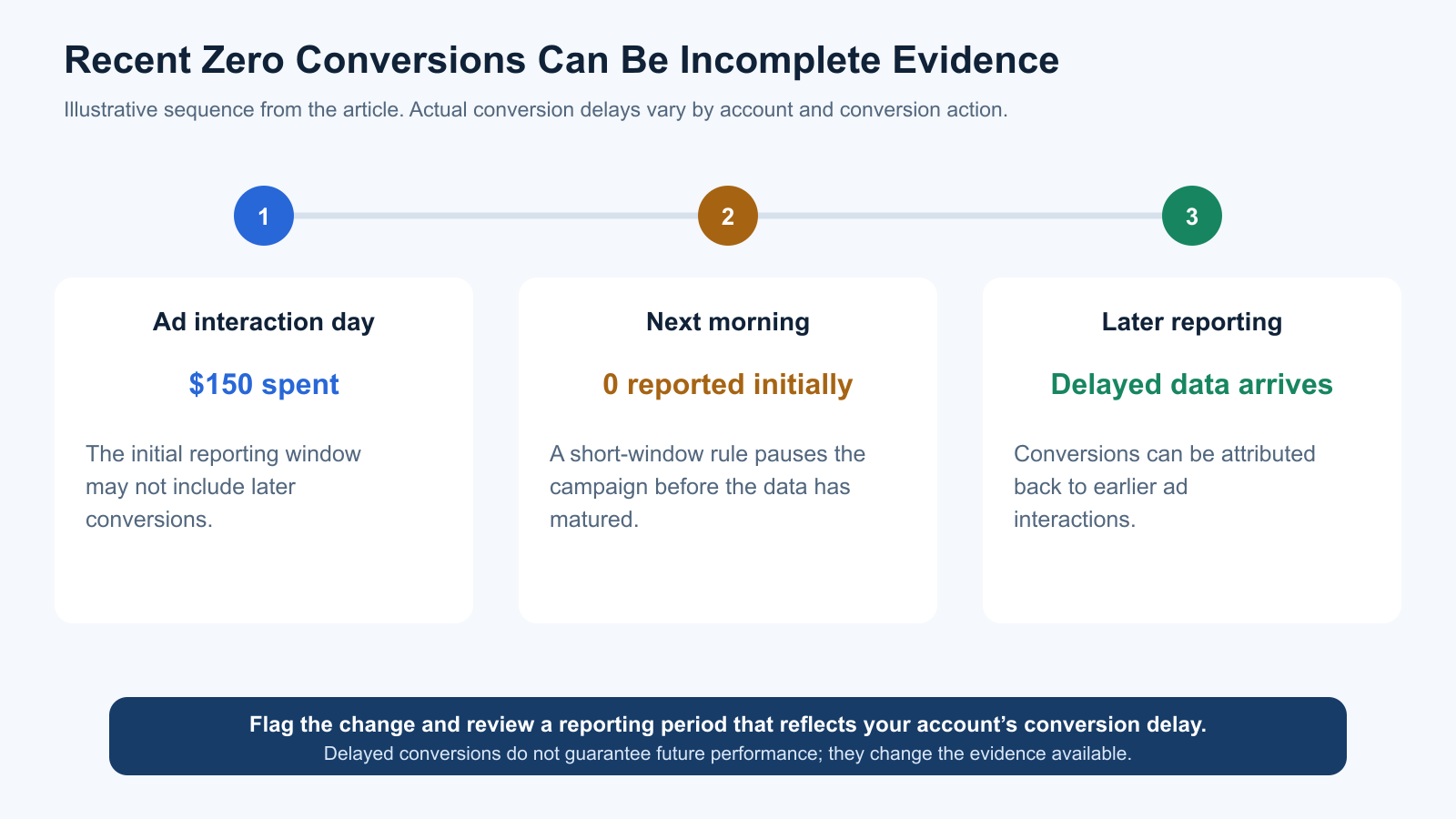
Conversion delay can make recent performance look worse than it is. Scripts that pause campaigns after a short period with no conversions can interrupt otherwise viable campaigns.
Search-term automation needs human review. A keyword that appears irrelevant at first glance may have useful commercial intent or conversion history.
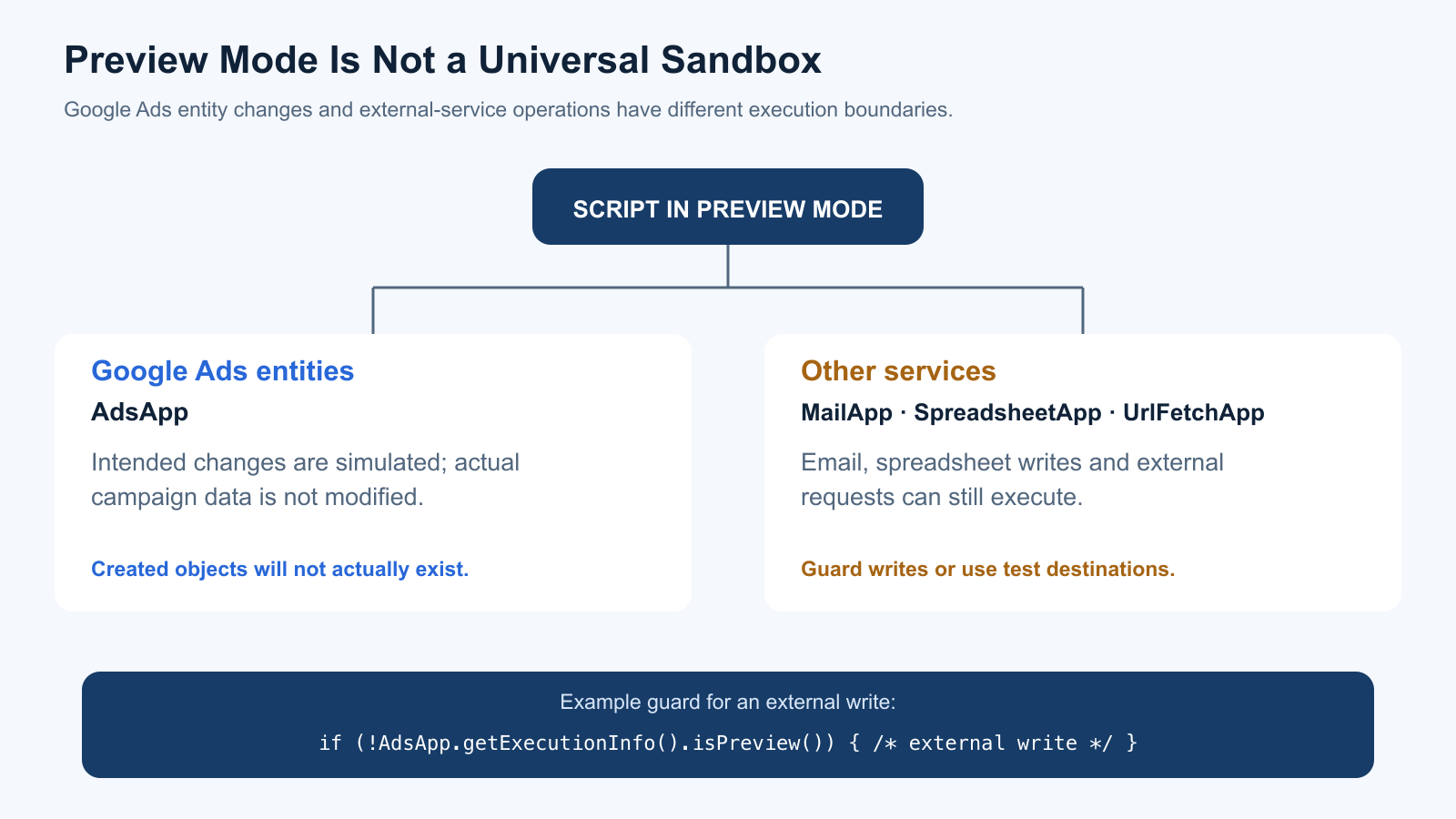
Preview mode has limits. It prevents actual Google Ads entity changes, but actions through services such as email and Google Sheets can still execute.
Measure resolved problems, not script executions. The real value comes from finding important issues, prioritising them correctly, and reducing unnecessary manual work.
What Are Google Ads Scripts?
Google Ads scripts are JavaScript programs that run within Google Ads and interact with account information through supported Google Ads Scripts interfaces.
They can retrieve campaign statistics, examine keywords, generate reports, and perform account management tasks. Scripts can also work with services such as Google Sheets, email, and supported external APIs.
Unlike a custom application built with the Google Ads API, scripts don’t require advertisers to maintain their own servers or independently configure all of the API authentication infrastructure.
Google’s Google Ads Scripts documentation describes the environment as serverless and available without additional Google infrastructure charges.
That doesn’t mean scripts are entirely free to operate. Staff time, external services, monitoring, maintenance, and mistakes can all create costs.
What Can Google Ads Scripts Automate?
Task
Example
Recommended Starting Approach
Performance monitoring
Detect unusual spend or conversion changes
Alert only
URL monitoring
Identify broken landing pages
Alert and investigate
Account reporting
Email a daily performance summary
Read-only reporting
Budget pacing
Compare spend with an approved spending plan
Alert before changing budgets
Search-term review
Identify terms that may need exclusions
Generate recommendations
Ad policy monitoring
Flag ads with approval problems
Alert and review
Performance Max analysis
Report asset-group performance
Reporting before optimisation
Keyword management
Synchronise approved negative keyword lists
Controlled changes with exclusions
The distinction between observing an issue and changing the account should determine how much testing and approval a script requires.
7 Google Ads Scripts Worth Stealing
The following workflows are practical starting points for advertising accounts. Several are based on Google’s official script solutions, while others describe useful reporting workflows that can be built with supported Google Ads Scripts functionality.
They aren’t ranked by independently measured performance. Their value depends on the problems each account actually experiences.
Best for: Monitoring unusual changes in spend, clicks, and conversions.
Risk level: Low when configured for alerts only.
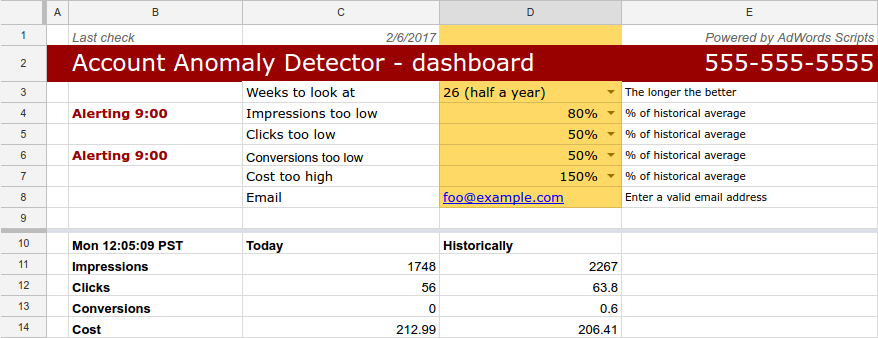
Google’s official Account Anomaly Detector is one of the most useful scripts to install before attempting more sophisticated automation.
It monitors account performance and alerts the advertiser when current activity differs significantly from historical patterns.
Instead of comparing this Tuesday against Monday, the script compares the current day with previous occurrences of the same weekday.
This matters because advertising performance often varies throughout the week.
For example, a business may regularly generate more leads on weekdays than weekends. Comparing Monday’s traffic with Sunday’s could create unnecessary alerts even when nothing unusual happened.
How the Script Works
Google’s template compares the current day’s statistics with historical observations from equivalent weekdays.
It also accounts for reporting delays when examining intraday data. Google notes that recent statistics can be delayed by up to three hours, so the script doesn’t assume that the newest data is immediately complete.
Advertisers can configure thresholds, connect the supplied spreadsheet, and schedule the script to run hourly or daily.
The template limits repeated notifications of the same alert type during a day.
What to Watch For
An anomaly is not automatically a problem.
A promotion, public holiday, tracking change, or major campaign adjustment may explain an unusual result. Even a meaningful drop in conversions could be affected by reporting delays.
Treat the notification as a reason to investigate, not permission to pause campaigns.
Recommended guardrail: Keep the script alert-only and define different thresholds for accounts with different volumes and spending patterns.
Verdict: One of the first scripts worth installing because it can identify unusual activity without directly changing delivery.
2. Link Checker: Find Broken Landing Pages Before They Waste Spend
Best for: Detecting ads, keywords, and sitelinks pointing to unavailable pages.
Risk level: Low when used for reporting.
A working advertisement pointing to a broken landing page is an avoidable problem.
Website redesigns, deleted products, changed URLs, and expired campaigns can all leave active advertisements pointing toward pages that no longer work.
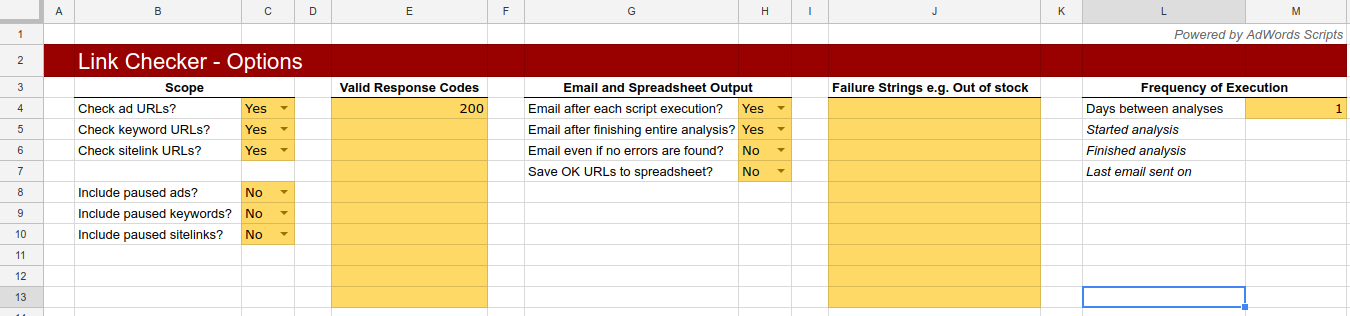
The script checks final URLs and mobile final URLs associated with supported advertising entities. It records problematic responses and can notify account managers by email.
Why It’s Worth Using
Imagine an ecommerce business removes a discontinued product page without updating its active ads.
Customers can continue clicking the advertisement, only to encounter a 404 error.
The ad click may still incur a cost, while the visitor has little opportunity to complete the intended purchase.
A scheduled link checker can help detect this issue without requiring the marketing team to manually inspect every destination.
Google’s template also supports larger accounts by tracking which URLs have already been checked and resuming the analysis across multiple runs.
Important Limitation: A 200 Status Doesn’t Guarantee a Working Landing Page
A webpage can return an HTTP 200 response while displaying an error message, requiring a login, or failing to load important content.
Google’s script includes advanced validation options that can examine page content for predefined failure messages.
However, it doesn’t reproduce every browser interaction or fully validate conversion functionality.
The official documentation also explains that its URL checks don’t fully resolve tracking templates, ValueTrack parameters, or custom parameters.
Recommended guardrail: Use the script to flag problems for review, and test important landing pages in a real browser before changing ads.
Verdict: A high-priority automation for ecommerce businesses, agencies, and accounts with frequently changing landing pages.
Best for: Daily account health checks and recurring stakeholder reports.
Risk level: Low.
The Account Summary Report is another official Google script that provides practical value without automatically changing bids or budgets.
It retrieves account statistics, updates a Google Sheet, and can send an email containing a summary of performance.
The standard workflow includes metrics such as spend, clicks, impressions, average CPC, CTR, and search impression share.
Google recommends scheduling the script daily at 3 a.m. or later, using the account’s reporting time zone, because statistics may be delayed.
Why It’s Worth Using
For a manager responsible for several advertising accounts, checking every dashboard manually can consume considerable time.
A standardised summary makes it easier to identify unusual patterns before opening Google Ads.
However, simply receiving a daily spreadsheet isn’t enough.
The report should highlight changes that require attention rather than forcing the reader to interpret dozens of unrelated measurements.
How to Improve the Default Report
Consider organising the output around three questions.
Did spending behave as expected? Review account cost and meaningful changes in campaign delivery.
Is measurement functioning? Investigate unusual conversion reporting changes without treating recent results as final.
What needs attention today? Highlight specific campaigns or issues rather than producing another collection of charts.
For larger teams, the report can also support handoffs between account managers, although client-specific reporting may require additional controls.
Recommended guardrail: Keep the basic report read-only, use consistent date ranges, and avoid sending sensitive account data to recipients who aren’t authorised to receive it.
Verdict: Useful when the time spent preparing recurring reports exceeds the time required to maintain the script.
4. Budget Pacing Alerts: Monitor Spend Before Changing Budgets
Best for: Accounts with monthly client limits, campaign flight dates, or tightly managed spending targets.
Risk level: Low for alerts; high when automatically modifying budgets.
Budget pacing scripts compare actual advertising spend with an agreed spending plan.
The principle sounds simple: determine how much should have been spent by a particular date, compare that figure with actual spend, and flag meaningful differences.
However, Google Ads budgets don’t necessarily behave like fixed daily caps.
For most campaigns, Google can spend up to twice the average daily budget on a particular day, subject to its applicable charging limits. The standard monthly spending limit is generally calculated using the average daily budget multiplied by 30.4.
Changing a campaign’s daily budget also changes how its spending limits are calculated.
Suppose a campaign has an average daily budget of $100.
A script checks spending during the afternoon and finds that the campaign has already spent $130.
Automatically reducing its budget to $70 might look like sensible cost control, but it could interfere with a legitimate high-demand day.
The script also needs to consider whether the budget is shared, whether the campaign uses automated bidding, and whether the advertiser has an approved monthly or campaign-total spending objective.
A better starting point is monitoring the actual spending trajectory.
Example: Monthly Budget Pacing
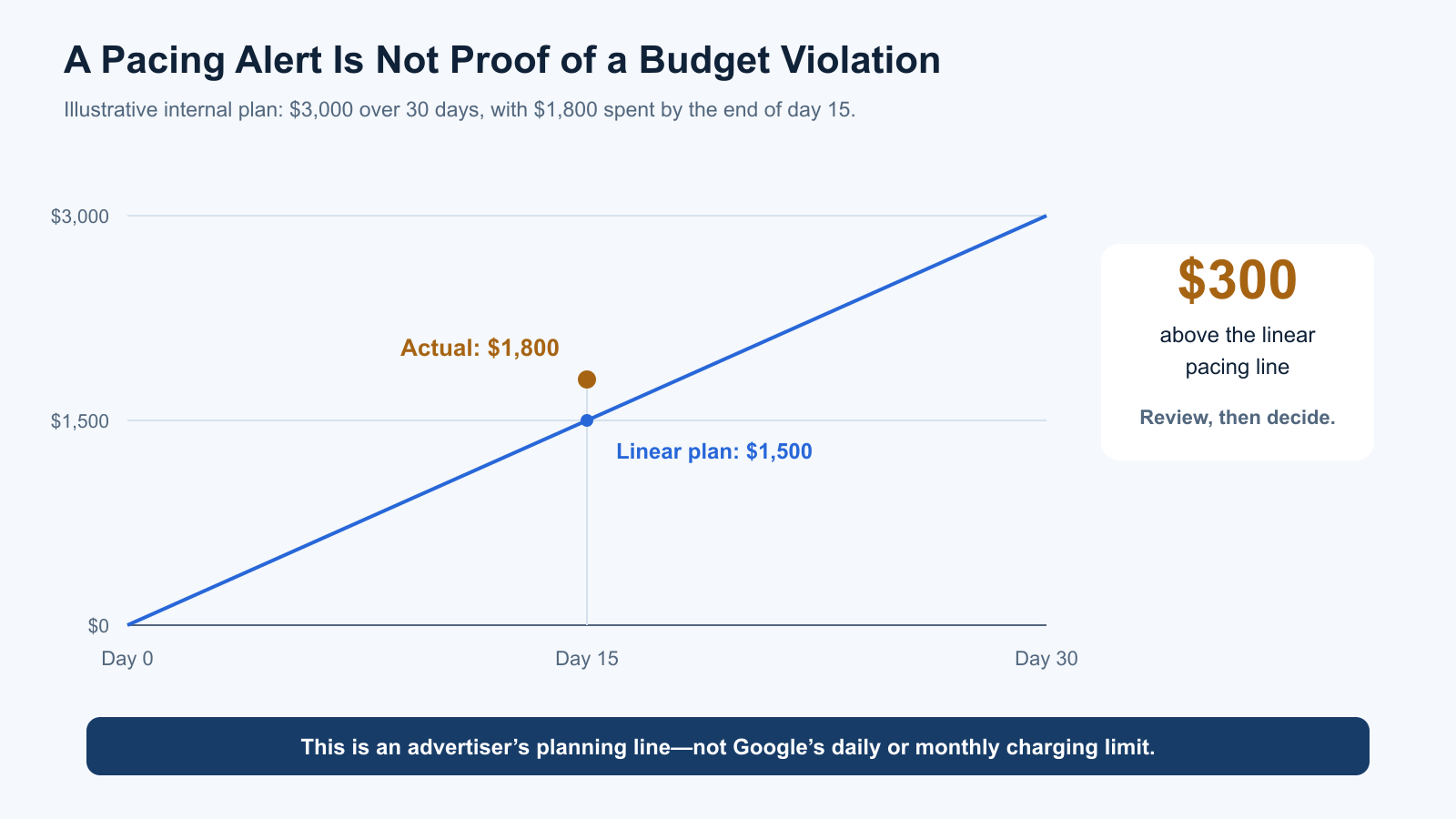
Consider a hypothetical account with a $3,000 internal monthly spending target.
By the end of day 15 in a 30-day reporting period, the account has spent $1,800.
Its simple linear pacing target would be:
$3,000 × (15 ÷ 30) = $1,500
The account is therefore $300 above that illustrative pacing line.
That doesn’t automatically mean Google has violated a budget limit, or that every campaign should be reduced. It indicates that the advertiser should investigate the spending plan and likely remaining activity.
The appropriate comparison may need to account for weekdays, promotional periods, expected seasonality, or different campaign priorities.
When Should a Script Actually Change Budgets?
Google provides an official Flexible Budgets script for advertisers needing a defined distribution of spend across a campaign period.
It includes strategies for distributing budgets evenly or using a weighted allocation.
However, a script that actively changes budgets requires stronger validation than a pacing alert.
Recommended guardrail: Begin with alerts. If automatic changes are necessary, restrict them to approved campaigns, use explicit minimum and maximum values, and verify the effect of each change on spending limits.
Verdict: Worth adopting as a monitoring workflow, but automatic budget adjustments should be introduced only after the account’s billing and pacing requirements are clearly understood.
5. Search-Term Review Scripts: Find Potential Waste Without Blocking Good Traffic
Best for: Reviewing search queries and identifying potential negative keywords.
Risk level: Low for reporting; high for automatic exclusions.
Search-term analysis is a useful application of Google Ads scripts because it helps advertisers identify the actual queries associated with their advertising activity.
A reporting script can collect available search terms, associated spend, clicks, conversions, and other relevant measurements.
It can then highlight queries that deserve further review.
For example, an advertiser offering paid bookkeeping services might see spending on searches for free bookkeeping templates.
That query may be a poor commercial fit, but it shouldn’t automatically be excluded without checking the account’s objectives and available results.
Why You Shouldn’t Automatically Add Every Suggested Negative Keyword
Google’s search terms reporting is not a complete inventory of every query.
Certain low-volume queries are omitted for privacy reasons. Google also groups some activity within search-term insights without exposing every individual search.
This means a script can’t reliably evaluate every search simply by examining the visible query report.
More importantly, apparently unprofitable terms may have delayed conversions or contribute to different stages of the customer journey.
Automatically applying broad negative keywords can also block valuable variations.
A Better Search-Term Workflow
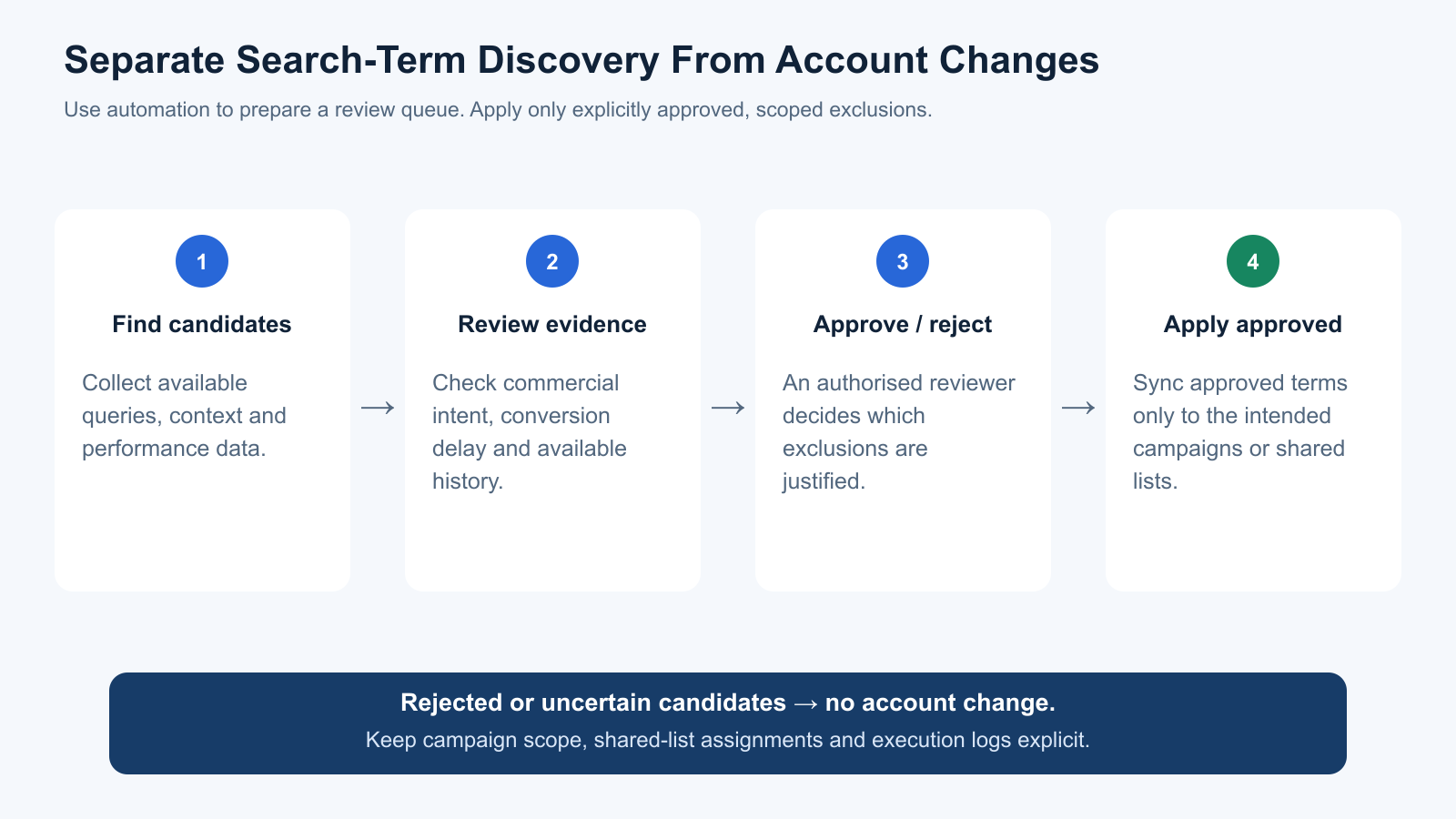
Use the script to produce a review sheet containing each candidate term, the relevant campaign or ad group, available performance metrics, and a suggested reason for review.
An account manager can then approve or reject the proposed exclusion.
Google’s Common Negative List script can synchronise approved negative keywords or placements from a spreadsheet into shared lists.
However, that introduces actual account changes. Its campaign scope, labels, and shared-list assignments should therefore be checked before enabling regular updates.
Recommended guardrail: Separate candidate discovery from negative-keyword application. Keep the approval process explicit, especially for shared lists used by several campaigns.
Verdict: Valuable for identifying possible wasted spend, provided the script doesn’t automatically turn incomplete evidence into account-wide exclusions.
6. Ad Approval and Eligibility Alerts: Find Campaigns That Cannot Serve Properly
Best for: Identifying disapproved ads, approval issues, and unexpected eligibility changes.
Risk level: Low when used for monitoring.
A campaign can stop delivering effectively even when its budget and targeting haven’t changed.
For example, an advertisement may be disapproved because of a policy issue, a landing page problem, or content requiring correction.
Google Ads provides reporting fields for advertising status and reasons that may affect eligibility.
A custom script can use supported reporting queries to identify relevant issues and create an exception report.
Why It’s Worth Using
In larger accounts, individual approval problems can be missed during routine performance reviews.
An advertiser may notice declining impressions without immediately recognising that important ads have become ineligible.
A focused report can help identify affected campaigns or ads and direct the account manager to the relevant policy information.
However, a script should distinguish between a genuine disapproval and other reasons an ad may not currently serve.
What the Script Should Report
A useful eligibility report should identify the affected campaign and ad, its relevant status or reason, the observation time, and a link or instructions for reviewing the issue inside Google Ads.
The report should prioritise advertisements associated with meaningful recent traffic or important campaign activity rather than treating every paused or inactive entity as an urgent incident.
The script should not automatically recreate rejected ads or make speculative content changes in an attempt to bypass policy enforcement.
Recommended guardrail: Use the script to direct a human reviewer toward policy and eligibility issues. Resolve those issues through the appropriate account workflow.
Verdict: Particularly useful for agencies and accounts containing large numbers of active advertisements.
7. Performance Max Reporting: Investigate Asset Groups Before Making Changes
Best for: Monitoring Performance Max campaigns and analysing available asset-group performance.
Risk level: Low for reporting.
Performance Max campaigns present a different automation challenge because Google handles substantial portions of targeting and delivery automatically.
A traditional Search campaign script may not map neatly onto Performance Max’s structure.
However, Google Ads Scripts supports Performance Max reporting through the Google Ads API query interface.
Its Performance Max reporting documentation provides an example that retrieves asset-group metrics such as conversions, conversion value, cost, clicks, and impressions.
Why It’s Worth Using
A reporting script can help advertisers organise available Performance Max measurements across several campaigns or asset groups.
For example, an ecommerce business might want a consistent overview of asset-group cost, conversion activity, and related performance measurements for a defined period.
This can reduce manual reporting work and help identify areas worth investigating.
What It Cannot Prove
Asset-group performance reporting doesn’t automatically explain why Google’s bidding system allocated delivery in a particular way.
Differences in audiences, product coverage, assets, campaign learning, or other factors may affect the results.
A script should therefore avoid treating every low-performing asset group as evidence that the assets themselves are the cause.
Recent conversion data may also be incomplete.
Recommended guardrail: Keep the initial workflow focused on reporting. Don’t automatically pause asset groups, remove assets, or change budgets based only on short-term performance comparisons.
Verdict: Useful for advertisers who need structured Performance Max reporting without adding unnecessary intervention to an already automated bidding environment.
5 Google Ads Scripts That Can Waste Budget
Not every automation deserves to be deployed just because it can be written.
The following approaches are especially risky when they make account changes using incomplete data or overly simple rules.
Risky Automation
Why It Can Fail
Better Alternative
Pause campaigns after a short period without conversions
Conversion lag and low volume distort results
Alert and review mature data
Increase budgets automatically for yesterday’s winners
Short-term results may not persist; budget limits change
Controlled budget experiments
Add negative keywords automatically from low-ROAS terms
May block useful searches or entire intent groups
Human-approved exclusions
Change bids based on hourly performance
Small samples, attribution delays, and Smart Bidding interactions
Monitor trends before intervening
Declare winning ads after a few conversions
Early results may be random or underpowered
Planned experiments with sufficient data
1. Automatically Pausing Campaigns With No Recent Conversions
A commonly shared automation rule is to pause any campaign that spends a certain amount without generating a conversion.
The problem is that reported conversions can arrive after the associated ad interaction.
Google’s conversion lag documentation explains that recent cost-per-acquisition figures may appear inflated and ROAS may appear lower while conversion data is still being collected.
Suppose a campaign spends $150 yesterday and initially reports no conversions.
A script pauses it the following morning.
Two days later, several conversions are attributed to the earlier interactions. The decision was made before the relevant measurement window was complete.
For campaigns with longer buying cycles, this risk can be substantial.
A safer approach is to flag the campaign and review a reporting period that reflects its actual conversion delay.
2. Automatically Increasing Budgets for Yesterday’s Winners
Another popular script increases budgets whenever a campaign exceeds a target ROAS or falls below a target CPA.
This can be dangerous when the result is based on a small sample.
For example, one unusually valuable purchase may make a campaign appear highly profitable for a short period.
Automatically increasing its budget the next day assumes that performance is repeatable.
It also changes the campaign’s spending limits, potentially allowing more spend than the advertiser intended.
Google specifically warns that changing the average daily budget affects charging limits, including how the highest selected budget during the day can influence that day’s spending limit.
Budget increases should therefore follow an approved allocation process rather than a single-day trigger.
3. Automatically Adding Broad Negative Keywords
Negative keyword automation can reduce obviously irrelevant traffic.
However, a script that automatically adds broad exclusions whenever a search term fails to meet a short-term performance threshold can also eliminate relevant demand.
The problem becomes more serious when exclusions are applied through shared lists across many campaigns.
For example, a business selling premium products might automatically exclude a term containing “cheap” because it appears to attract low-value searches.
But some users researching affordable alternatives may still purchase higher-priced products after comparing features.
The business needs evidence about its actual customer behaviour, not a simplistic classification based on the query wording.
Use automation to identify candidates, then evaluate their commercial relevance before making changes.
4. Hourly Bid Adjustments Based on Small Samples
Scripts that increase or decrease bids based on the last few hours of performance may appear responsive.
However, short reporting windows can contain very little useful conversion evidence.
Traffic patterns, auction conditions, attribution delays, and ordinary randomness can create large percentage changes even when the underlying business performance hasn’t meaningfully shifted.
The risk increases when scripts intervene in campaigns already using Smart Bidding.
Google recommends avoiding frequent significant changes during bidding learning periods because they can disrupt optimisation.
A script should not attempt to outguess automated bidding using a small collection of delayed metrics.
5. Automatically Declaring Winning Ads Too Early
Statistical rigour matters when scripts are used to optimise creative or advertising experiments.
A script might compare two advertisements and automatically pause whichever has the lower conversion rate after a handful of conversions.
However, that difference may reflect chance rather than a meaningful performance advantage.
The problem becomes more serious when the script repeatedly checks results and declares a winner as soon as a favourable difference appears.
Frequent checking without an appropriate sequential testing method can increase the risk of false conclusions.
A better approach is to define the test, primary success metric, acceptable error rates, and stopping conditions in advance.
A Safe Google Ads Script You Can Adapt: Daily Spend Alert
Before installing code that changes campaigns, it can be useful to begin with a simple read-only script.
The following example examines yesterday’s cost for enabled campaigns and logs any campaign whose spend exceeds a configurable threshold.
It can also send an email during live execution.
This is an illustrative starter script, not a production-tested account management system. It doesn’t account for shared budgets, seasonality, conversion performance, or client-level spending allocations.
/**
 * Google Ads Scripts: Daily campaign spend alert
 * Reads campaign performance; does not change Ads entities.
 *
 * Replace EMAIL with your authorised address.
 * Set ALERT_AT in your Google Ads account currency.
 */

const EMAIL = 'your-email@example.com';
const ALERT_AT = 100;

function main() {
  const account = AdsApp.currentAccount();
  const currency = account.getCurrencyCode();

  const query = `
    SELECT
      campaign.id,
      campaign.name,
      metrics.cost_micros
    FROM campaign
    WHERE campaign.status = 'ENABLED'
      AND segments.date DURING YESTERDAY
  `;

  const results = AdsApp.search(query);
  const alerts = [];

  while (results.hasNext()) {
    const row = results.next();
    const cost = Number(row.metrics.costMicros || 0) / 1000000;

    if (cost >= ALERT_AT) {
      alerts.push(
        row.campaign.name +
        ' (ID: ' + row.campaign.id + ')' +
        ' spent ' + cost.toFixed(2) + ' ' + currency
      );
    }
  }

  if (alerts.length === 0) {
    console.log('No campaigns exceeded the alert threshold.');
    return;
  }

  const message =
    'Account: ' + account.getCustomerId() + '\n' +
    'Date range: Yesterday\n\n' +
    alerts.join('\n');

  console.log(message);

  // Preview can still execute email operations.
  // Send only during an actual script run.
  if (!AdsApp.getExecutionInfo().isPreview()) {
    MailApp.sendEmail(
      EMAIL,
      'Google Ads daily spend alert',
      message
    );
  }
}
What This Script Does
The script retrieves yesterday’s campaign cost using Google Ads Query Language (GAQL).
Google Ads reports monetary cost through metrics.cost_micros, so the code divides the value by one million to express it in the account’s currency units.
It then compares the result with the configured threshold.
If a campaign meets or exceeds that amount, its name, ID, and spending figure are added to the report.
The example doesn’t increase budgets, pause campaigns, or modify targeting.
What You Should Change Before Using It
Replace the placeholder email address and set the threshold according to your account currency and the scale of your campaigns.
For an account using PHP, a threshold of 100 means ₱100, not $100. It is intended only to demonstrate the basic logic, not to recommend a useful alert threshold.
Schedule the script daily after the previous day’s reporting has had time to settle.
For more advanced monitoring, consider different thresholds by campaign, comparisons with historical baselines, and controls to prevent unnecessary repeat notifications.
For a production deployment, also add appropriate error handling and test the script against your own account data.
Google Ads provides a built-in editor for writing, authorising, previewing, and scheduling scripts.
The setup process is relatively straightforward, but deploying unreviewed code into an account that spends real money should never be treated as routine.
Step 1: Open the Scripts Interface
Sign in to Google Ads and navigate to Tools → Bulk actions → Scripts.
Create a new script, name it according to its purpose, and paste or adapt the code.
Google also provides templates for several established workflows.
Start with official examples where possible, since they have documented configuration requirements and support resources.
Step 2: Review the Code and Permissions
Before authorising the script, identify which account information it reads and which actions it can perform.
Look for methods that pause campaigns, change budgets, adjust bids, create negative keywords, or remove entities.
Also review any code that sends information to email addresses, spreadsheets, or external services.
A script that contacts an unfamiliar external server should be treated with particular caution.
Step 3: Run a Preview
Google Ads provides Preview mode to help developers examine intended account changes before running them live.
However, its protection isn’t universal.
According to Google’s Preview mode documentation, previewing prevents actual changes through AdsApp, but calls to services such as MailApp and SpreadsheetApp can still execute.
For this reason, previewing a script doesn’t mean it is entirely free of side effects.
If the script uses external services, explicitly prevent those operations during preview or use a controlled test destination.
Step 4: Restrict the Initial Scope
Test the script against a small number of campaigns or a clearly defined account segment.
Google Ads labels can help organise eligible entities and limit which campaigns a script processes.
For scripts that change advertising delivery, use explicit allowlists or approval conditions rather than broad account-wide selection.
Also include an easy way to disable the automation.
Step 5: Review Logs and Schedule Carefully
Google Ads Scripts provides execution logs and change logs that help advertisers understand what happened during a run.
Review both during testing.
Standard scripts have an execution limit of thirty minutes. Importantly, Google explains that changes completed before a script times out can remain applied.
That means a timeout doesn’t necessarily roll back everything the script already changed.
For scripts affecting live advertising, partial execution and restart behaviour need to be considered.
Once the script behaves correctly, schedule it at a frequency appropriate to the information being monitored.
Hourly checks may be appropriate for certain urgent alerts, while daily or weekly schedules may be more useful for reporting and broader analysis.
The Guardrails Every Google Ads Automation Needs
Scripts are safer when their operational rules are defined before deployment.
A simple guardrail checklist can prevent several common implementation problems.
Guardrail
What It Prevents
Practical Implementation
Read-only starting mode
Unapproved campaign changes
Generate reports and alerts first
Explicit account scope
Changes affecting unrelated campaigns
Use campaign IDs, labels, or allowlists
Minimum data requirements
Decisions based on small samples
Set volume and date-range conditions
Conversion-lag adjustment
Incorrect interpretation of recent results
Review mature conversion periods
Change limits
Excessive bid or budget adjustments
Set approved minimums and maximums
Approval process
Automation acting on uncertain recommendations
Require human confirmation
Execution logging
Untraceable account changes
Record entity IDs and before/after values
Emergency stop
Continued actions after unexpected behaviour
Disable the schedule or use a stop condition
Error handling
Partial or repeated unintended operations
Check execution state and retry logic
Review ownership
Alerts no one acts on
Assign a responsible account manager
The objective isn’t to eliminate automation. It’s to prevent a script from making decisions that its available evidence cannot justify.
How to Evaluate Whether a Google Ads Script Is Worth Keeping
A successful script should improve the advertising workflow in a measurable way.
Execution frequency, report length, and the number of issues flagged don’t necessarily indicate value.
The more useful measurements are whether it identifies real problems, whether the team acts on them, and how much time or unnecessary cost it helps avoid.
1. Capability: Does the Script Find Real Problems?
Begin with a known baseline.
For a link checker, deliberately test a small controlled set containing healthy URLs and known problematic destinations.
For an anomaly detector, examine whether it identifies meaningful historical deviations without generating constant false alarms.
A script that produces impressive-looking alerts but misses important problems isn’t doing its job.
2. Prioritisation: Does It Separate Urgent From Cosmetic?
A broken landing page associated with substantial active spending deserves more attention than an unused historical URL.
Similarly, a small CTR movement on a low-volume campaign may not justify an immediate alert.
A good workflow should help the account manager identify which issues deserve attention first.
However, priorities should reflect business impact and available evidence rather than arbitrary severity labels.
3. Time to First Useful Action
Measure the time from beginning installation to taking the first useful action because of the script.
That includes configuration, permissions, testing, and understanding the resulting report.
A script that takes hours to configure but only replaces a simple weekly manual check may offer little immediate benefit.
Another script might take longer to install but uncover important problems that would otherwise go unnoticed.
The distinction is whether the information changes a useful decision.
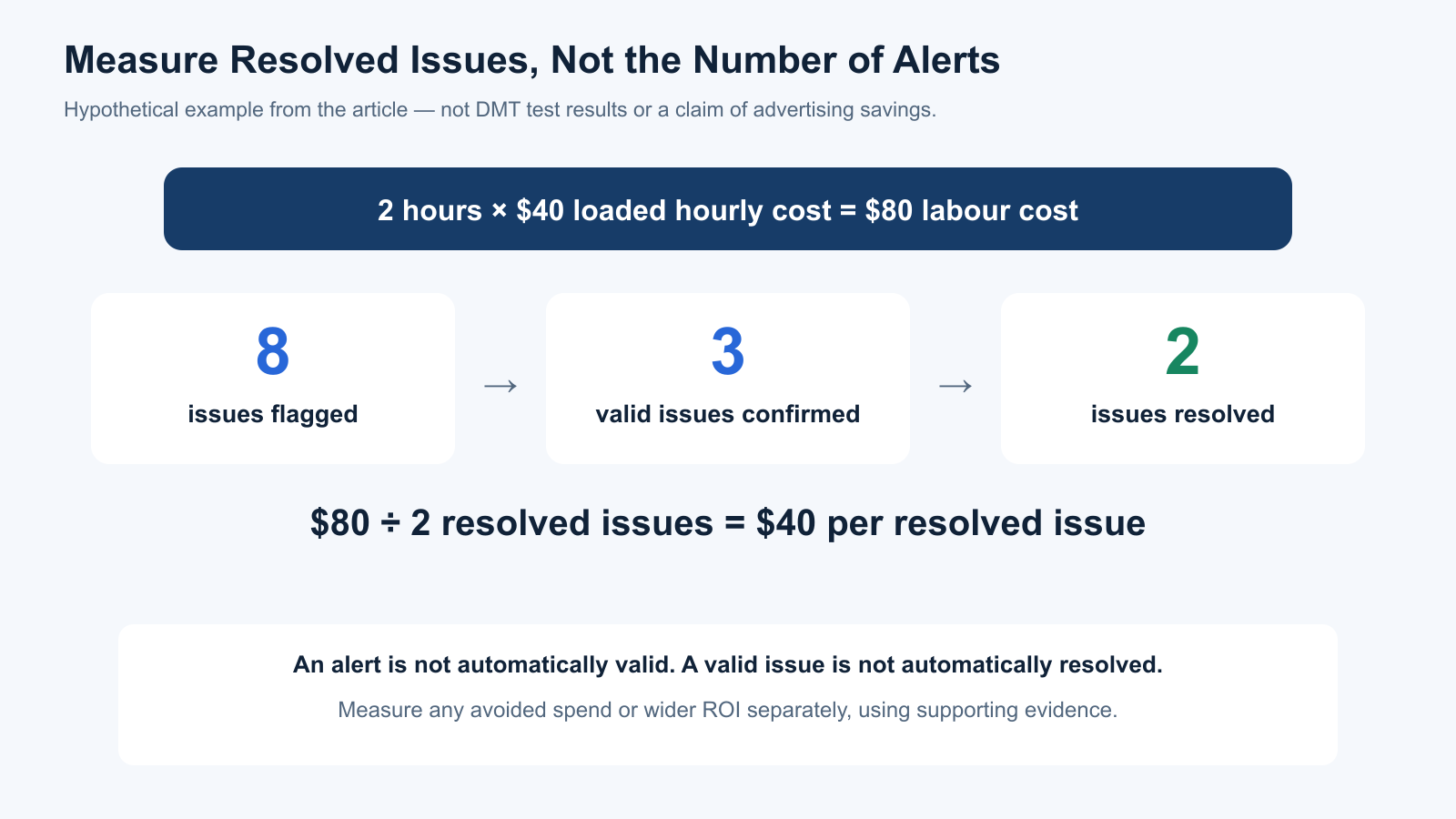
4. Cost per Resolved Issue
This metric measures the actual cost of operating the workflow relative to problems successfully addressed.
Consider the following hypothetical example.
Measurement
Result
Time spent configuring and reviewing the script
2 hours
Loaded hourly labour cost
$40
Total labour cost
$80
Issues flagged
8
Valid issues confirmed
3
Issues resolved
2
Cost per resolved issue
$40
Cost per resolved issue = $80 ÷ 2 = $40
These figures are illustrative, not results from DMT testing.
The calculation helps distinguish a script that generates many alerts from one that consistently identifies actionable problems.
However, it doesn’t calculate savings or return on investment by itself. A resolved issue may prevent a significant amount of wasted spending, or it may have little financial impact.
Teams should measure that separately where sufficient evidence is available.
Google Ads Scripts vs Automated Rules vs Paid Management Tools
Scripts aren’t always the right solution.
Google Ads already includes automated rules and other account management capabilities that may be sufficient for simpler tasks.
Paid advertising management platforms can also provide monitoring, reporting, bidding support, and workflow automation, although their subscription costs and functionality vary.
Option
Main Advantage
Main Limitation
Google Ads automated rules
Easy to configure without code
Less flexible than custom scripts
Google Ads Scripts
Custom logic, reports, and supported integrations
Requires testing and maintenance
Google Ads Editor
Bulk editing and offline review before posting
Not a scheduled monitoring system
Paid PPC management platforms
Packaged workflows and support
Subscription cost and vendor constraints
Google Ads API applications
Greater control for complex integrations
Requires development and infrastructure
For a small advertiser, Google Ads’ native rules or a basic reporting script may be sufficient.
For an agency managing several accounts, scripts can help standardise recurring analysis and alerts.
Larger organisations may require more sophisticated integrations, approval processes, and reporting infrastructure.
The decision should depend on the workflow problem, not the perceived sophistication of the technology.
When Should You Avoid Using a Google Ads Script?
Avoid deploying a script simply because another advertiser recommends it.
The account structure, conversion volume, bidding strategy, and campaign goals may be entirely different.
A script designed for a high-volume ecommerce account might be unsuitable for a service business generating only a few qualified leads each month.
Likewise, older scripts may rely on deprecated Google Ads reporting interfaces or unsupported API versions.
Before reusing public code, confirm that its reporting queries, supported campaign types, and methods still work with the current Google Ads Scripts environment.
Pay particular attention to scripts that make account changes automatically. These require stronger testing than reporting scripts because an error can affect spend or delivery before someone notices.
Final Verdict: Automate the Checks Before the Decisions
The Google Ads scripts most worth using are often the least dramatic.
Anomaly detection, broken-link monitoring, daily account summaries, budget pacing alerts, and structured reporting can help account managers identify important issues without surrendering control of campaign decisions.
Search-term review, approval monitoring, and Performance Max analysis can also provide useful evidence when implemented carefully.
The risky scripts are those that turn incomplete measurements into immediate changes.
Pausing campaigns based on delayed conversions, increasing budgets after one strong day, or automatically excluding search terms without adequate review can all create avoidable problems.
Start with read-only reporting, verify the findings, and document what happens when the automation detects something unusual.
Only introduce automatic changes when the rules are supported by sufficient data, the scope is controlled, and the team has a practical way to stop or reverse the process.
A good Google Ads script should remove repetitive work and help prevent expensive mistakes—not create new ways to make them faster.
Frequently Asked Questions
What Are Google Ads Scripts?
Google Ads scripts are JavaScript programs that run within Google Ads and can retrieve advertising data, generate reports, and perform supported account management operations. They can also connect with services such as Google Sheets and email. Scripts can be scheduled to run automatically.
Are Google Ads Scripts Free?
Google provides the Google Ads Scripts execution environment without additional infrastructure charges. However, scripts may create operational costs through development, maintenance, third-party integrations, and staff review. Incorrect automation can also affect advertising spend.
What Are the Best Google Ads Scripts for Beginners?
Google’s Account Anomaly Detector, Link Checker, and Account Summary Report are practical starting points. They help advertisers monitor unusual performance, broken URLs, and account activity without requiring automatic bid or budget changes.
Can Google Ads Scripts Automatically Pause Campaigns?
Yes. Scripts can pause supported campaigns and other advertising entities. However, automatic pausing should be approached carefully because recent conversion reporting can be incomplete. Start with alerts and apply account changes only under clearly defined conditions.
Can Google Ads Scripts Prevent Overspending?
Scripts can monitor spending and help identify pacing problems. Some can also change budgets or pause campaigns. However, they shouldn’t be treated as an absolute billing guarantee, and automated budget changes can affect Google’s spending limits. Use the platform’s budget controls and appropriate oversight.
How Often Can Google Ads Scripts Run?
Google Ads supports scheduled script executions, including hourly, daily, weekly, and monthly schedules. The appropriate frequency depends on the task. Urgent monitoring may benefit from more frequent checks, while reporting can often run daily or weekly.
Do Google Ads Scripts Work With Performance Max?
Yes. Google Ads Scripts supports Performance Max reporting and selected account management operations. However, Performance Max has a different structure from traditional Search campaigns, so scripts should use supported resources and reporting fields rather than assuming every Search campaign method applies.
Is Google Ads Scripts Preview Mode Completely Safe?
Preview mode prevents changes to Google Ads entities through the supported AdsApp interface. However, operations using services such as email, spreadsheets, or external requests can still execute. Previewing is useful but doesn’t replace code review or controlled testing.
Are Google Ads Scripts Better Than Automated Rules?
Scripts offer more flexibility and can support custom reporting, calculations, and integrations. Automated rules are simpler to configure and may be sufficient for basic account management tasks. The best option depends on the complexity of the workflow and the advertiser’s ability to maintain it.
Can Google Ads Scripts Improve ROAS?
Scripts can support better monitoring, reporting, and operational decisions, but they don’t automatically improve return on ad spend. Their value depends on whether they identify meaningful problems or support changes that produce better outcomes. Any claimed performance improvement should be evaluated against appropriate evidence.
This guide is based on Google’s official documentation and a practical evaluation framework. It doesn’t claim that DMT installed and benchmarked every workflow in a live advertising account.
Disclosure: DigitalMarketingTools.ai is sponsored by Digimetrics.ai, which is developed by MediaOne. This guide doesn’t recommend or evaluate a Digimetrics product, and no sponsored product ranking has been assigned.
About the author
Tom Koh
Tom is the CEO of MediaOne, a leading digital marketing agency. He is a business-experienced SEO consultant as well as a Google Gold Search Expert serving the international community. He has consulted for MNCs like Canon, Maybank, Capitaland, SingTel, ST Engineering, WWF, Cambridge University, as well as Government organisations like Enterprise Singapore, Ministry of Law, National Galleries, NTUC, e2i, SingHealth. His articles are published and referenced in CNA, Straits Times, MoneyFM, Financial Times, Yahoo! Finance, Hubspot, Zendesk, CIO Advisor. Under his stewardship, MediaOne has won dozens of prestigious digital marketing awards.
Your website has 150 published articles. Some attract consistent organic traffic, others haven’t generated a meaningful visit in months, and several cover nearly identical…
Writing a good advertisement sounds simple until you have to create 15 different headlines, stay within character limits, communicate your product’s benefits, and make…
Verifiability matters more than speed when publishing AI-generated content. An AI content generator turns a short brief into draft copy, and its usefulness depends…